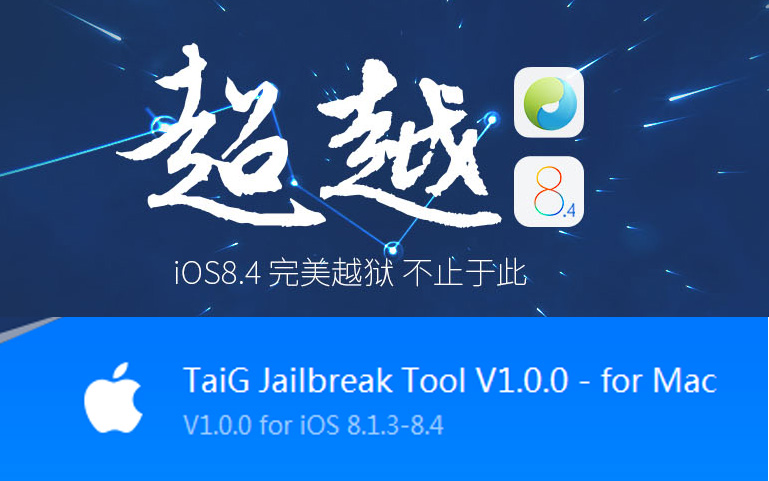
Mac version of TaiG jailbreak for iOS 8.4 – 8.1.3 has released to the public. This is the complete tutorial for how to jailbreak iOS 8.4 using untethered TaiG jailbreak on Mac. Users with iPhone, iPad or iPod devices running iOS 8.4 – iOS 8.1.3 are welcome to jailbreak & install Cydia for their devices with five steps. just follow the instructions are given below to success..
Note : This guide is only for the Mac users. Windows users go through below link to get complete jailbreak guide for iOS 8.4 – 8.1.3
Download TaiG Latest Version
Version 1.1.0
TaiG mac version can be applied for following iOS devices to install Cydia
Step 01 >> Download latest version of TaiG jailbreak tool for Mac on your computer from above links.
Step 02 >> Double-click on the downloaded TaiG Jailbreak dmg file to mount. Then, drag and drop it to the Applications folder. Double-click on the TaiG Jailbreak icon to launch it.
Step 03 >> Connect your iOS device to computer with USB cable & wait to detect your device by the program.
Step 05 >> Stay connect & wait patiently, it will take some time for the process. After complete the jailbreak process, you will be shown “Jailbreak Succeeded!” massage. This means, you have successfully installed Cydia on your idevice. Now you are able to endless customizing your device with amazing Cydia tweaks & apps.
Can download latest Cydia for your device ?Cydia is a most powerful app store developed…
Your favorite Cydia application has hundreds of apps for users. Can download Cydia for any…
What is Panda Helper App This is one of the best Cydia alternative application developed…
One of the best Cydia alternative Panda Helper not only support for iOS but also…
You can watch movies and TV shows in HD quality with this new app Aston…
Cydia is your favorite application which can use to download third party applications. Actually jailbreak…
View Comments
Need to download
can someone email me a link for cydia that is really free
We have provided link for Cydia absolute free. But, Cydia is not available to download directly in anywhere. To get Cydia for you device, you should follow jailbreak pathway.
Good
Install cydia 1.1.19
Install now
Taig 8.4
Install cydia taig
Cannot download to my iphone v8.3.1
You can use TaiG or PP to jailbreak & download Cydia application - http://cydiainstaller.net/cydia-ios-8-4-2/jailbreak-taig-or-pp/